Connecting your Outlook email to SARAL is a simple, one-time process that enables smooth and secure email integration for your team’s Outlook accounts to SARAL.
Follow the steps below to get started.
If you are your organization's Outlook administrator and are connecting the account, you will need to grant permissions.
Open a new browser window (or incognito window).
Paste the following link into the address bar:
Admin Consent Link:
Sign in with your Outlook admin credentials.
Review the permission request and click Accept.
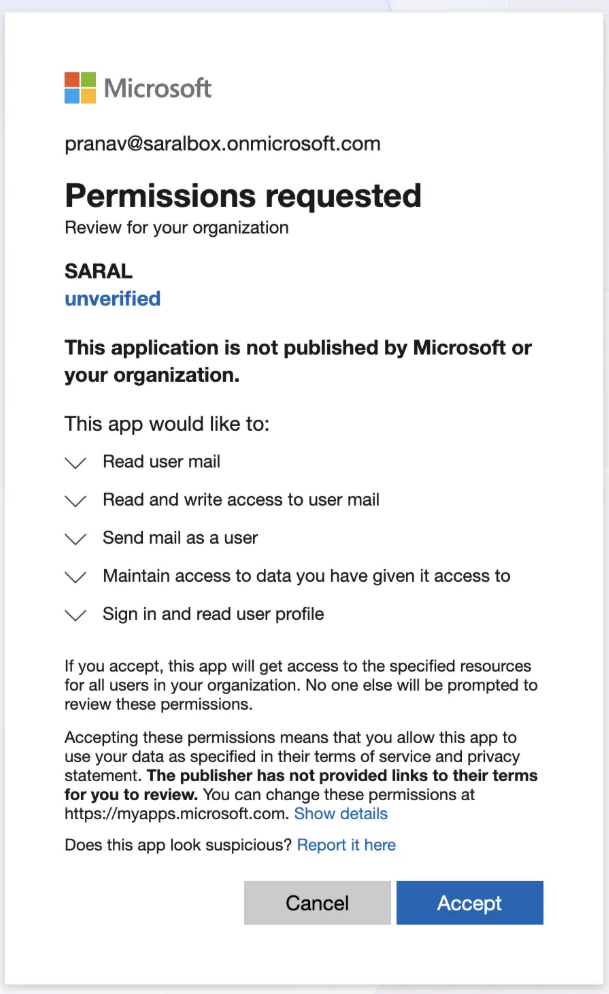
You will be redirected to the SARAL login page — this confirms the admin setup is complete.
✅ Admin connection is now done.

Once the admin setup is complete, each user can connect their own Outlook account:
Go to SARAL Settings > Connected Emails.
Click “Connect New Email” and select Outlook as the provider.
Enter your name and email address, then proceed to connect.
✅ User connection is now done.
Reach out anytime with our helpful Support team using the button at the bottom-right corner of your dashboard, or email us at [email protected].