
Labels and Libraries work together to organize your tracked content. A label tags a piece of content so you can identify it later, and a library groups content together by one or more labels, then keeps itself updated automatically as new matching content comes in.
Adding Labels
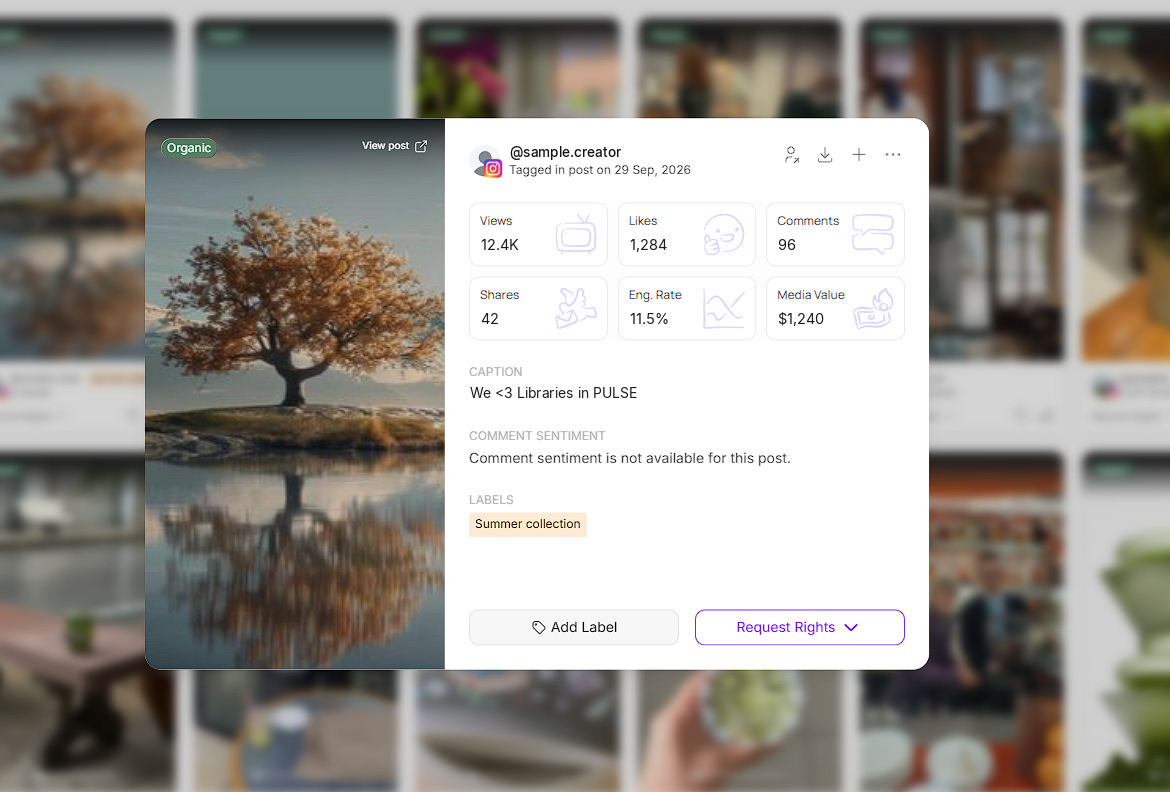
A label can be added to any piece of tracked content.
Open the post you want to label.
Click Add Label, under the post's details.
Creating a Library
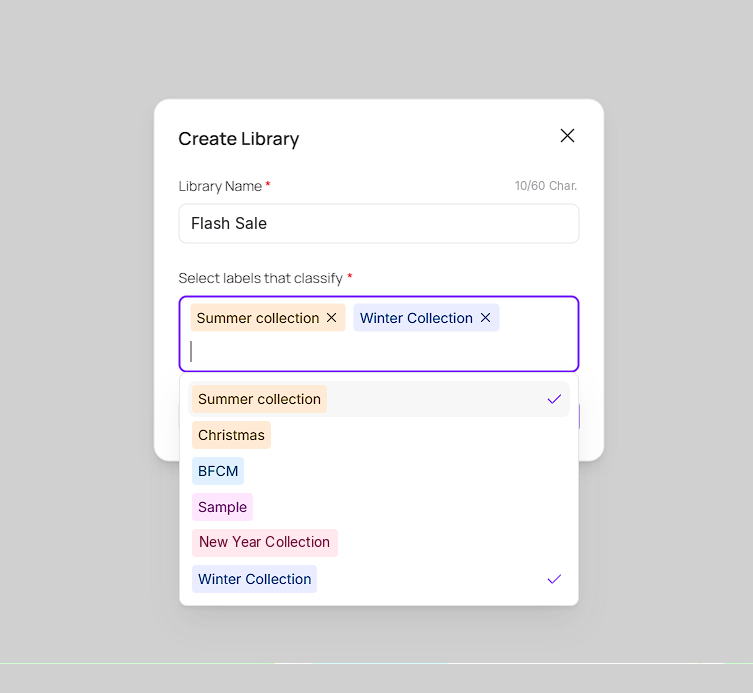
A library is a collection of posts made up of any number of labels. Once created, it automatically tracks every post that carries those labels, including new content added after the library is created.
Click Create Library.
Name the library.
Select the labels that classify it.
Browsing a Library
Inside a library, you can:
Search content within the library
Sort by date added, date posted, views, comments, or likes
Filter by content type, mention type, tracked source, or label
Download everything in the library as a single ZIP folder
Sharing a Library
You can share a library as a view-only external link, for someone who isn't on SARAL.
Click Share.
Click Copy to copy the link.
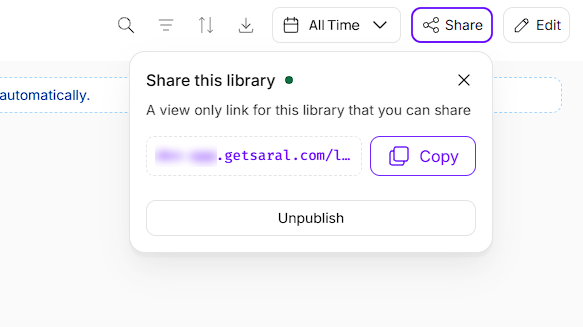
Publishing makes the link live and copyable. Unpublishing hides the library from anyone viewing it externally, without deleting the library itself.
Editing a Library
From Edit, you can rename the library, delete it, or add and remove the labels that define it.
Why Customers Love This Feature
Labels and Libraries turn a flat feed of tracked content into something organized around how a brand actually thinks about its content, by collection, by campaign, or by product line.
Because a library is built from labels rather than a manual list, it keeps itself current: label a new post correctly and it shows up in the right library automatically. And because a library can be shared externally or downloaded as a ZIP, it doubles as an easy way to hand off a curated set of content to someone outside SARAL, like an agency or a design team, without giving them platform access.
Still need help?
Reach out anytime to our Support team using the button at the bottom-right corner of your dashboard, or email us at [email protected]