Usage Rights within PULSE lets you fetch a creator's permission to reuse their content, for example on ads, on your website, or as an organic repost. You send the request from any tracked post in PULSE, the creator approves or declines with one tap, and you track every request from the Usage Rights tab.
On any tracked post, open the Request Rights dropdown.
Select Usage Rights and click Request.
Choose a Purpose: Usage on Ads, Organic repost, Social Proof on Website, or Custom.
Choose a Duration: 30 days, 90 days, 6 months, 1 year, Forever, or a custom number of days.
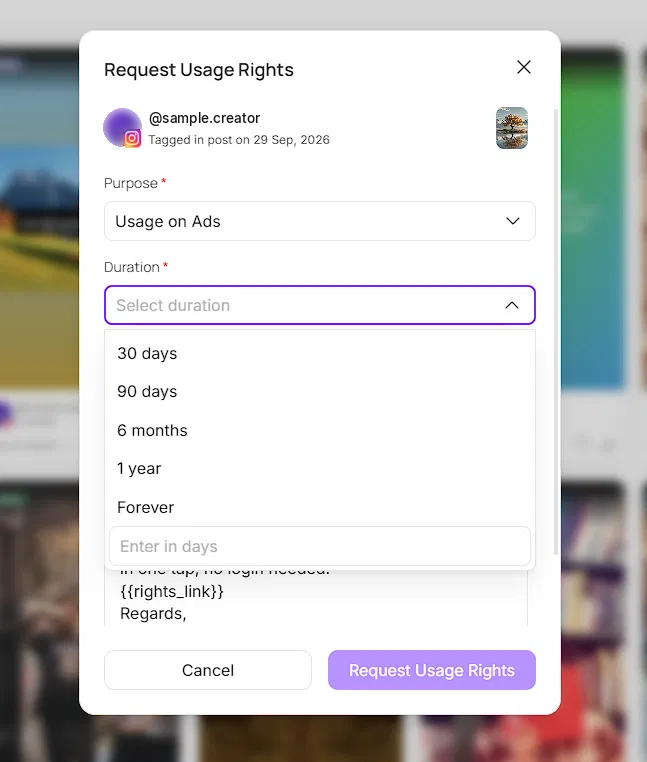
Choose an Incentive: either free (you're asking for rights at no cost) or free gifts.
Click Request Usage Rights.
For free gifts, you select the SKUs you want to send from your Shopify store.

PULSE pre-populates a message with the purpose and duration you selected, along with a rights link. The request goes to the creator by email.
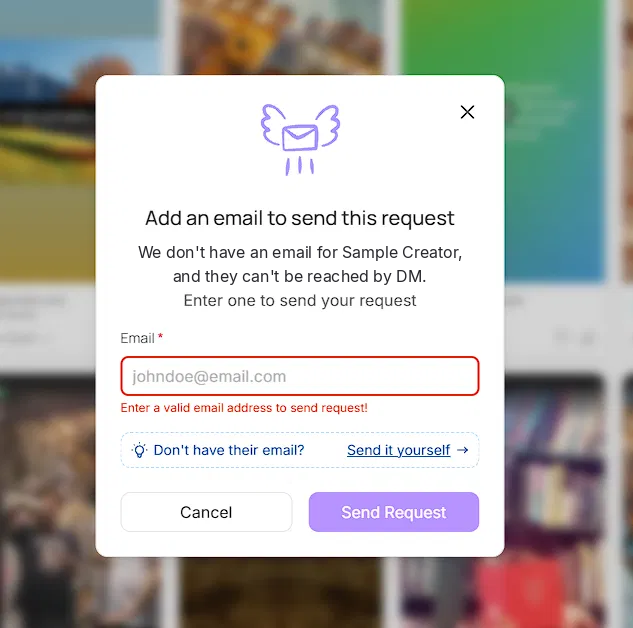
If PULSE doesn't have an email for the creator, you'll be prompted to add one. If you'd rather not, you can choose Send it yourself and share the message and rights link with the creator directly, for example by DM.
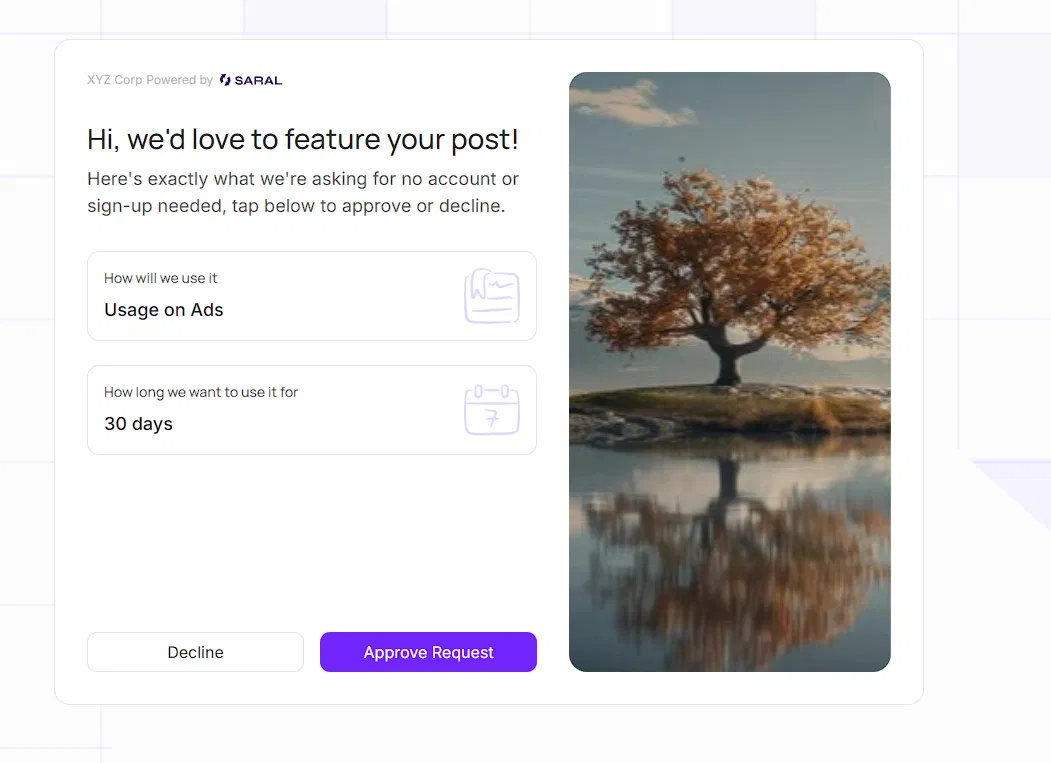
The creator receives an email with the rights link. Opening it shows a page with exactly what you're asking for: how you'll use the content and for how long. No account or sign-up is needed. They tap Approve Request or Decline.
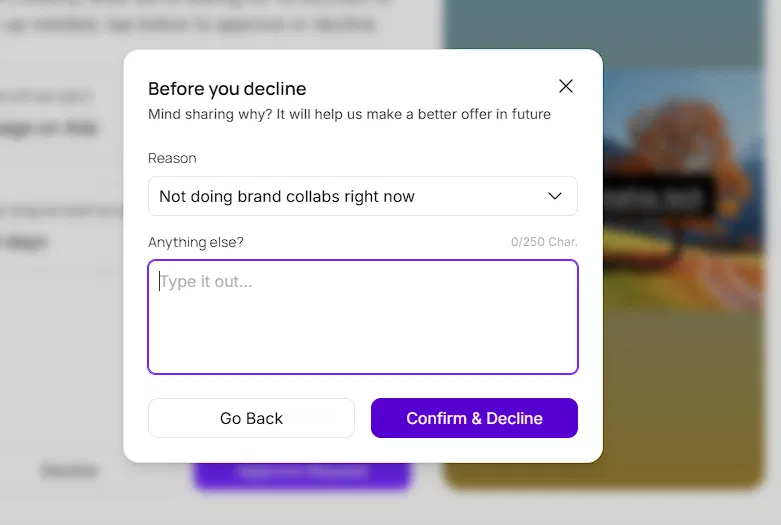
If they decline, they're asked to pick a reason from a list and can add an optional note. This feedback is passed back to you.
The Usage Rights tab has three sub-tabs:
Request Sent: every request that's still waiting on a response.
Accepted: requests creators have approved.
Declined: requests creators have declined, along with the reason they gave.
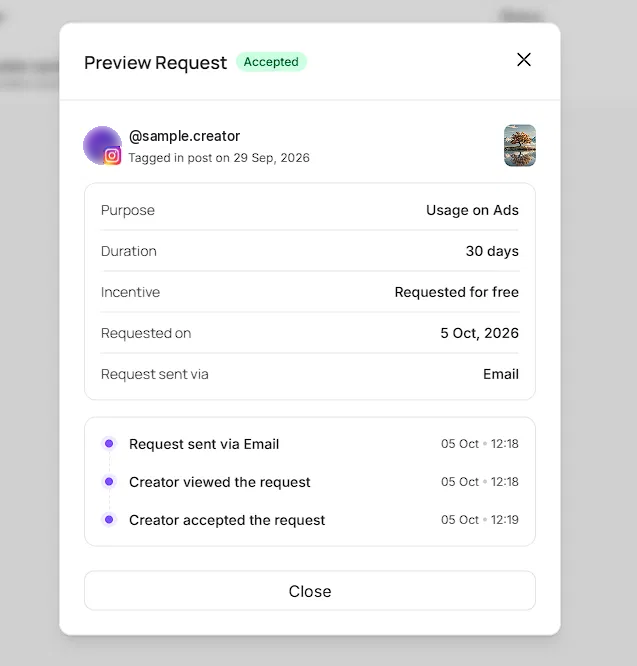
Open any accepted or declined request to see its full trace: the purpose, duration, incentive, when it was requested, how it was sent, and each step that followed, such as the creator viewing and then accepting or declining it.
Getting rights to a creator's content usually means a long thread of DMs and emails with no paper trail. Usage Rights replaces that with a single request that spells out exactly what you want, which the creator can answer in one tap without signing up for anything.
Still need help?
Reach out anytime to our Support team using the button at the bottom-right corner of your dashboard, or email us at [email protected]