Campaigns let you track content and measure performance for a specific group of creators, so you can see how each campaign is doing without piecing it together by hand. Each campaign has its own Content tab and Analytics tab.
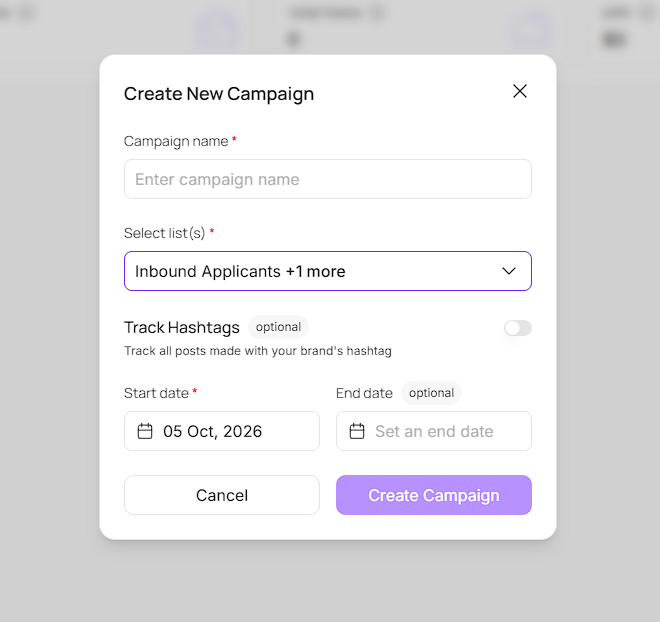
Go to the Campaigns tab and click Create Campaign.
Enter a Campaign name.
Select the list(s) whose creators you want to track. You can select more than one.
Optionally, turn on Track Hashtags to also track posts made with your brand's hashtag.
Set a Start date. The End date is optional.
Click Create Campaign.
Once created, PULSE automatically matches the content it already tracks to your campaign, so posts from the creators in your selected lists show up without any extra setup.
The Content tab inside a campaign shows every tracked post from the creators in your selected lists. You can search, filter, and act on posts the same way you do in the main Content tab, including adding labels and requesting usage rights or partnership access.
See our guide on the Content tab for the full breakdown.
Using the Content Page on PULSE
The Content tab is where all tracked mentions of your brand live. Search, filter, and organize your content by type, mention source, label, or hashtag, and view it in grid or list format.
The Analytics tab shows how the specific campaign is performing, split into three groups of metrics.
Volume & Reach
Posts - Total Posts within the Campaign
Creators - Total Creators within the Campaign
Total Views - Total Views Received in this Campaign
Engagement - Total Likes and Comments across posts in this campaign, excluding Stories.
Quality & Efficiency
PPD - Average posts per day for this campaign
PPC - Average posts per creator
EMV - Earned Media Value accrued in this campaign
Eng. Rate - Average ER of creators posting within the campaign
Cost & ROI
Gifting ROI - EMV / Gifting Spend
CPM - Campaign Spend by Total Views Multiplied by 1000
CPP - Campaign Spend / Total Posts
ROAS - Revenue from Creators in Campaign / Campaign Spend
Below the metrics you'll find:
Mentions Trend: mention activity over time, toggleable between Activity and Reach.
Content Type Breakdown: the split of mentions across Posts, Reels, and Stories.
Top Creators: the most active creators in this campaign, sorted by views, with their mentions, views, engagement rate, EMV, and cost to creator.
Most brands run several campaigns at once, such as a summer launch and a flash sale, and comparing them usually means stitching together numbers by hand.
Campaigns separates your tracked content campaign by campaign, list by list, so each one has its own clean view of posts, top creators, and returns.
Still need help?
Reach out anytime to our Support team using the button at the bottom-right corner of your dashboard, or email us at [email protected]