The Content tab shows every piece of content tracked as a mention of your brand, every reel, story, and post, in one place. From here you can search, filter, label, and review that content before it feeds into your Analytics.
You can search content by caption or by creator name. To narrow results further, filter by:
Content type — Reels, Stories, Posts
Mention type — Tagged, Mentioned, Hashtag
Label — any custom label you've created, matching any or all selected labels
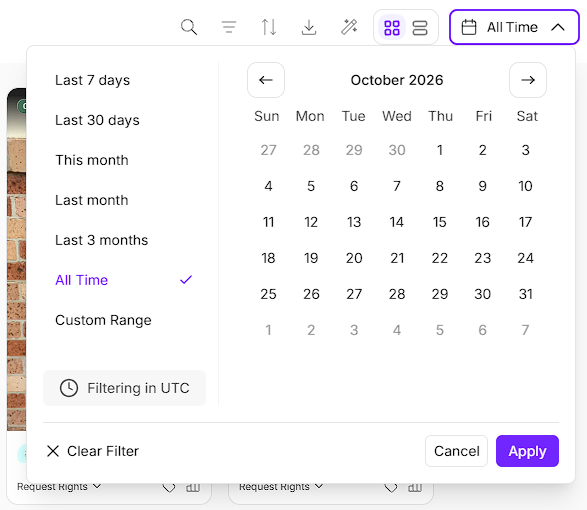
Date range — filter content by date
From any individual piece of tracked content, you can:
Add a label, to help identify and organize it
Request usage rights, to get permission to reuse it
Request partnership access, to run ads from that creator's account
See our guide below on Labels and Libraries and our guide on Partnership Ads to know more.
Labels and Libraries in PULSE
Labels help you tag and identify tracked content. Libraries group that content into collections you can browse, download, and share, all built automatically from your labels.
Run Partnership Ads via PULSE
How to request partnership ad access from a creator, build and publish an ad using their content, and track ad performance, all from inside PULSE.
Content can be viewed as a grid, for a quick visual scan, or as a list, for a more detailed row-by-row view. Switch between the two from the view toggle at the top of the tab.
Every piece of tracked content is automatically tagged as one of the following:

Still need help?
Reach out anytime to our Support team using the button at the bottom-right corner of your dashboard, or email us at [email protected]