Challenges let you reward creators for hitting a specific goal, such as a set number of posts, likes, comments, or views. You choose the goal and the reward, add the creators, and review their content once they reach it. Challenges live inside PULSE.
Go to Challenges in PULSE and click the create button at the top right.
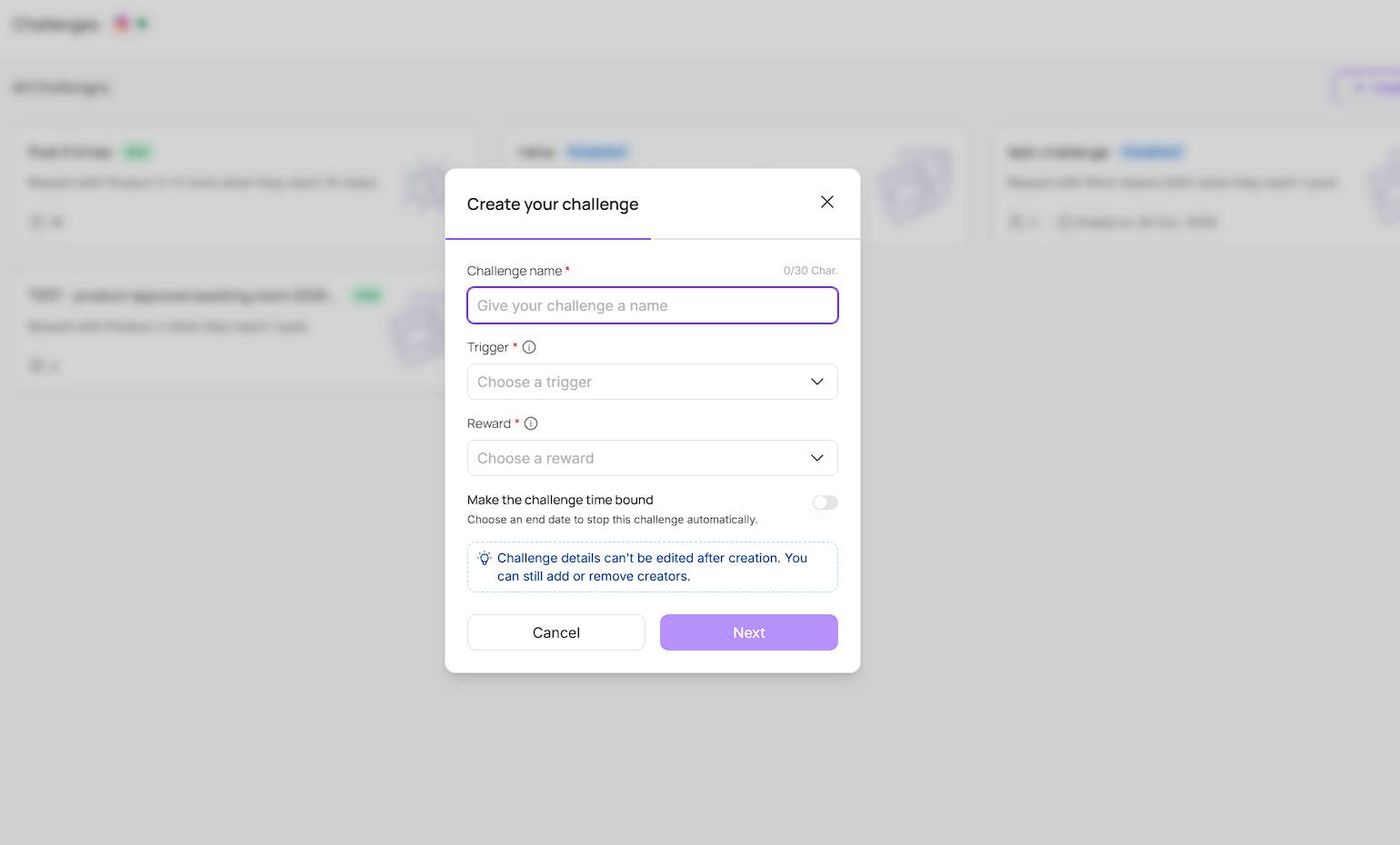
Enter a Challenge name (up to 30 characters).
Choose a Trigger. This is the goal a creator needs to hit, based on posts, likes, comments, or views.
Choose a Reward. You can offer a Flat Fee Bonus or a Free Product through Shopify.
To end the challenge on a specific date, turn on Make the challenge time bound and pick an end date. The challenge stops automatically on that date.
Click Next.

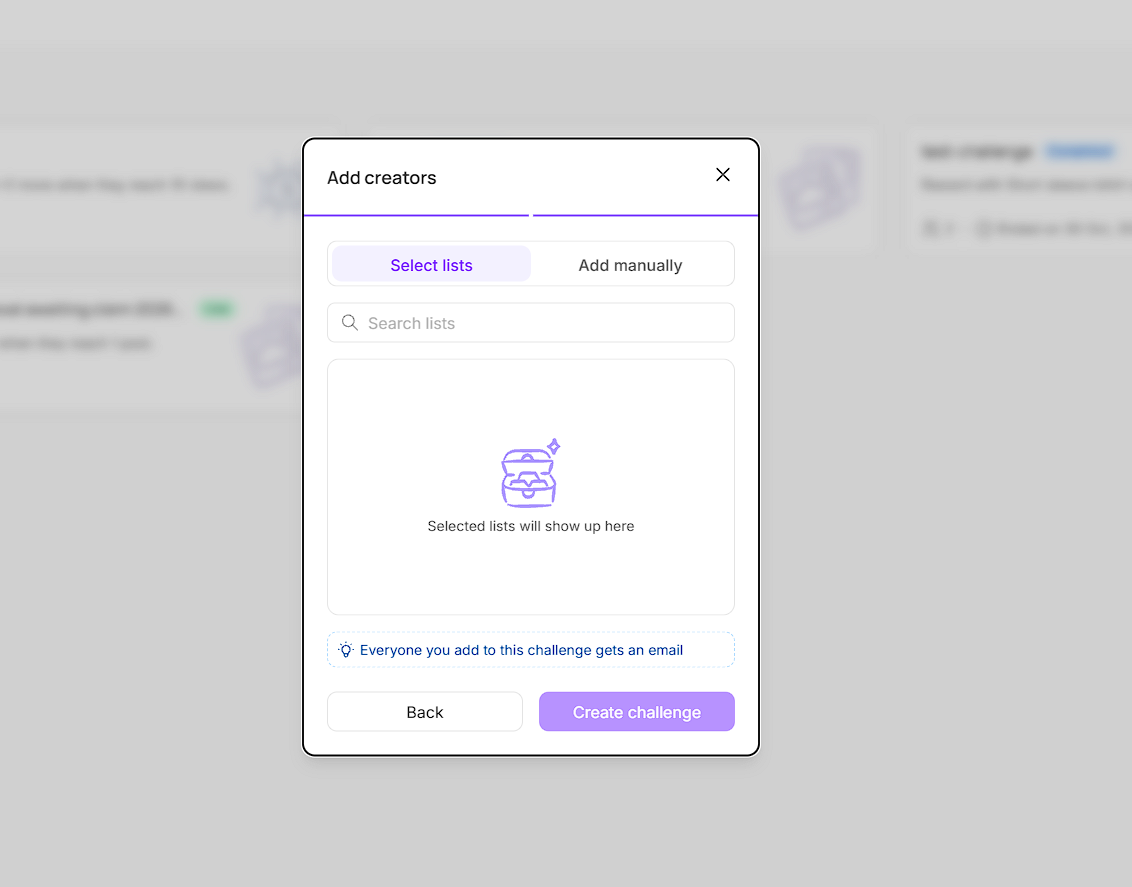
After clicking Next, choose who takes part in the challenge. You can add creators in two ways:
Select lists: search for and select one or more of your existing creator lists.
Add manually: add individual creators one by one.
Click Create challenge when you’re done. Your challenge goes live straight away.

Open a challenge to see its Review tab. When a creator meets the trigger, they appear here with their status set to Pending, along with a link to the content they posted.
Click View under the creator’s content to check what they posted.
Click the tick to approve or the cross to reject.
The top of the page shows Total Creators, Total Posts, Total Likes, and Creators Rewarded for that challenge.
Use the search icon to find a creator by name or username. Use the status dropdown to filter creators by Pending, Approved, or Rejected.
Click Manage to see everyone in the challenge and remove individual creators.

You can also add a creator to a challenge from their Individual Influencer View (IIV).
Open the creator’s profile.
In the sidebar, select the challenge you want to add them to.
The creator is added to the challenge and receives an email about it.
Influencer Profile Page 101 - The Basics
The Basics
To open a challenge to creators outside your program, click the share icon on the challenge page. This creates a public link you can share anywhere.
Creators who apply through the link appear in the Applications tab. Once you approve an application, that creator joins the challenge and is added to a list in SARAL called Challenges.
Creators get emails as they progress through a challenge.
Creators on SARAL only see their progress on their individual ambassador dashboard.
If you have SATHI enabled, creators on SATHI see their progress on their SATHI dashboard.
Challenges give creators a clear target and a defined reward, which makes it easier to drive a specific outcome like more posts or more views in a set window. Progress tracking, content review, and rewards all sit in one place, so you don’t need to check each creator’s account manually. The public link also lets you bring in new creators without adding them by hand.
Still need help?
Reach out anytime to our Support team using the button at the bottom-right corner of your dashboard, or email us at [email protected]