Bulk actions let you select multiple posts in PULSE and act on all of them at once, instead of repeating the same action one post at a time. They are available on the Content page, inside Campaigns, and inside Libraries.
Each post has a checkbox. In card view, the checkbox sits in the top-left corner of the post. In table view, it sits at the start of each row. Click the checkbox to select a post. Selected posts are highlighted so you can see what is included.
As soon as you select one or more posts, a bulk action bar appears at the bottom of the screen. It shows how many posts you have selected, followed by the actions you can take:
Select All: Selects all content in the current view.
Add to List: Adds the selected posts to a list.
Add Label: Assigns a label to the selected posts.
Download: Downloads the selected posts.
Delete: Deletes the selected posts from PULSE.
To clear your selection and close the bar, click the X on the left side of the bar.
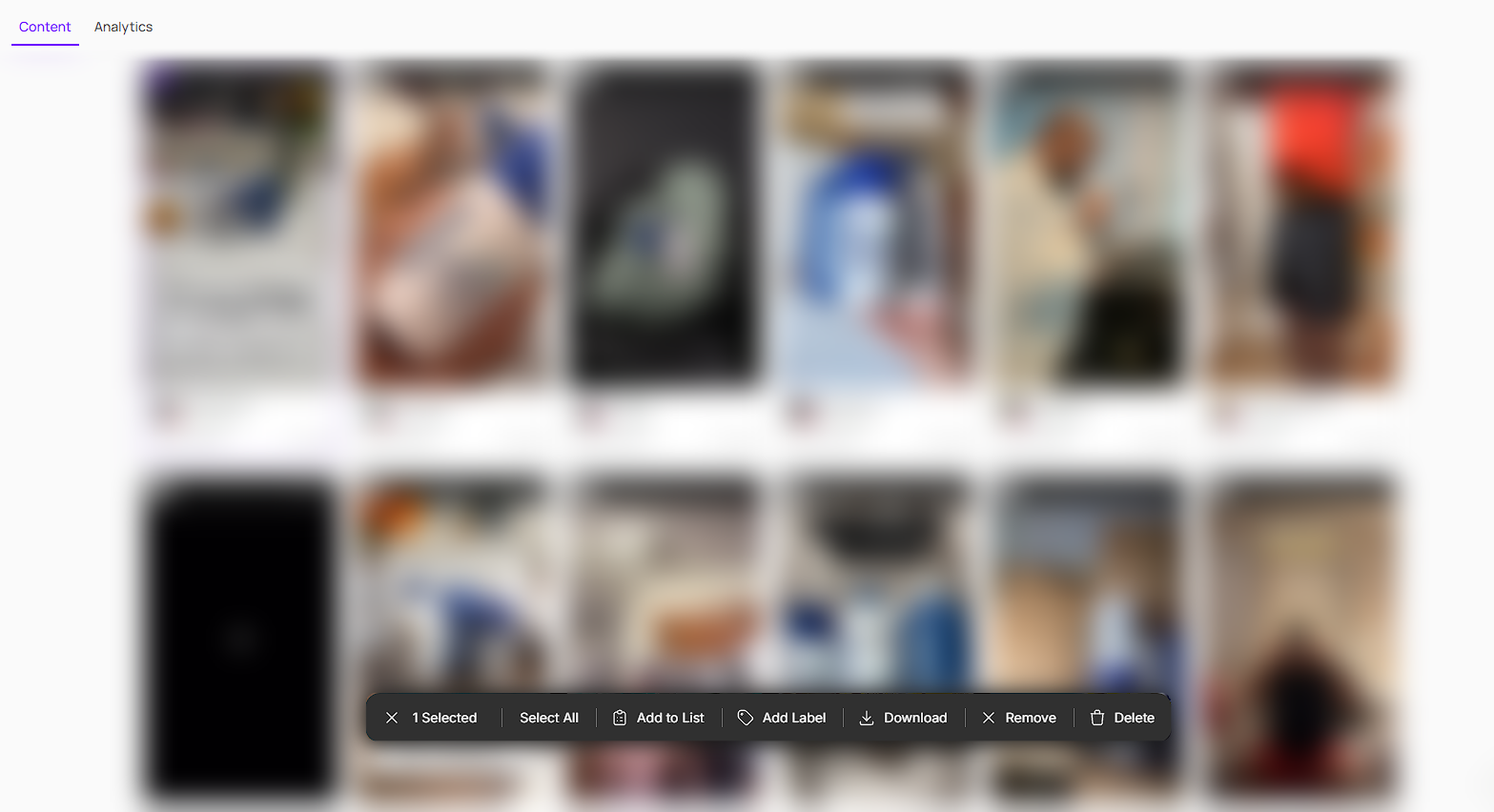
On the main Content page, bulk actions work in both card view and table view. Select the posts you want, then choose an action from the bar.
Inside a campaign, the bulk action bar includes an additional Remove action. Remove takes the selected posts out of that campaign. Hovering over Remove shows how many posts will be removed and from which campaign.

For more on campaigns, see our guide on creating and managing campaigns.
Campaigns in PULSE
Track creator content and performance campaign by campaign. Create a campaign from your creator lists, then view its content and analytics in one place.
Inside a library, you can select posts and use Remove to take them out of that library. You can also download or delete the selected posts from here.
For more on libraries, see our guide on using libraries.
Labels and Libraries in PULSE
Labels help you tag and identify tracked content. Libraries group that content into collections you can browse, download, and share, all built automatically from your labels.
Still need help?
Reach out anytime to our Support team using the button at the bottom-right corner of your dashboard, or email us at [email protected].